Main window
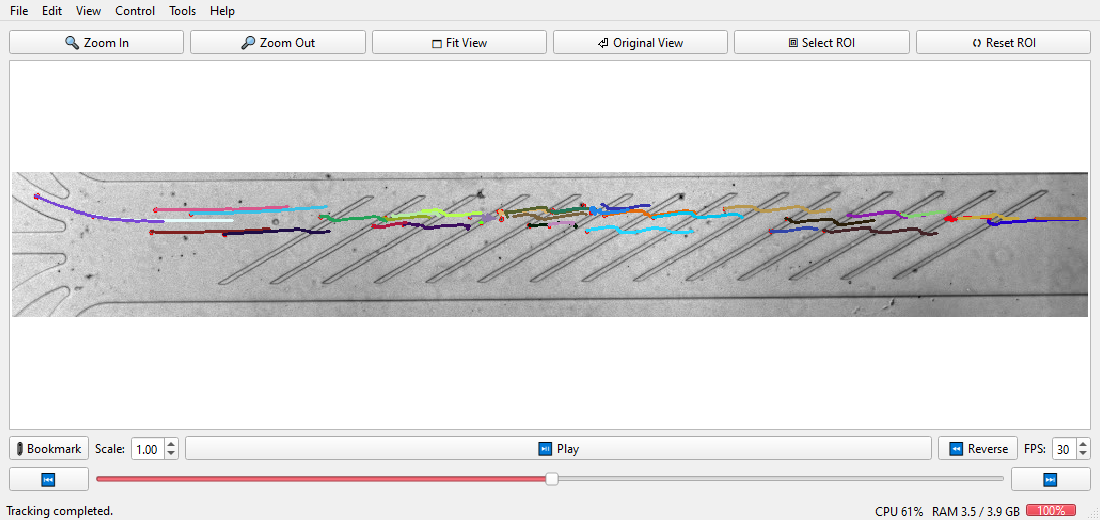
The video is on top, the controls under it, the status bar at the bottom (messages, progress, CPU and memory). While no video is open, three buttons in the empty area open a video, the live camera or a table.
Video
- File > Open (Ctrl+O) opens an
.avi,.mp4or.cinefile. You can also drop a file on the window. File > Open Recent lists the last eight videos and presets. File > Close (Ctrl+W) goes back to the empty window and keeps the settings. - The slider and the frame field move through the video. Play, Reverse, previous and next frame are in the Control menu and under the video; the FPS field sets the playback speed.
- Zoom In, Zoom Out, Fit View and Original View are in the top row and the View menu.
Region and scale
- Select ROI: drag a rectangle over the channel; move or resize it, Reset ROI removes it. Only the region is processed.
- Scale shrinks the picture before it is processed. Half the scale is about four times faster and still finds cells that are large enough.
Cells
- With contours or traces switched on (Tools menu), detected cells and their tracks are drawn over the video.
- Click a cell to select it: its ID, area, perimeter, diameter and circularity show under the video. Double-click a cell to open its rows in Trajectories.
Undo
Edit > Undo (Ctrl+Z) and Redo (Ctrl+Y) cover every settings change: adjustment, mask, contours, tracker, frame range, region, scale, calibration, bookmarks and notes.
While a job runs
Tracking and export run in the background; the window stays usable. Esc stops the job and keeps what is done. Controls that would disturb the job are switched off until it ends.